







Well, if you thought my last post was a bore, you haven’t seen nothing yet. In my last Tools of the Trade post, I just talked about the hardware I use. As was made clear from that, I am in the Apple ecosystem with a focus on my Mac as my primary computing device. And while hardware is important to discuss because it is what work is done on and saved on, it is just half of the equation. The other, perhaps more important part of this discussion is the software on my Mac that I use daily to get everything done. This is not an exhaustive list, that would be a never ending list. Many of these programs I plan to go more in-depth with in the future as they are such critical parts of my workflows. These are just going to be apps I use on my Mac as it is my working device, but a number of them are also on my iPhone and iPad and many of my workflows depend switching between one device to another. Well, here we go.
Homebrew and Mas
I don’t like to use graphical interfaces unless they are necessary to the task or greatly simplify a workflow. While I will touch on this more in sections further down and will most likely take a deep dive in a future post, a prime example of where the GUI can get in the way is with application updates. I do not like getting greeted with A New Update is Available messages whenever I launch an app. This window gets in the way and requires me to stop whatever I was about to do and make a decision completely unrelated to the task I was sitting down to begin. This is even worse when it is an app which is part of a larger workflow. The update window at a minimum requires me to press an button or a option. This choice just delays the update and causes me to preform this same stupid task the next time I launch an application I may not use more than one a week or even once a month. If I do go ahead with the update, I then have to wait for a download to conclude where I can no continue my task. Furthermore, if I do not look at the update notes, I can risk my workflow breaking after preforming the update. As a Mac user, the obvious answer would be the Mac App Store. But this comes with its own host of problems, such as long loading times to fetch updates in the app and the massive cut in money Apple takes from developers when paying for apps or services through their storefront. Also, many of the applications I use every day are not in the app store but are instead acquired from the developer’s homepage or storefront. If only there were another way.
Well, there is. They are called package managers. In the GNU/Linux and BSD world of operating systems, this is nothing new. Each distribution comes with their own package manager which allows you to search, research, and manage various programs on your system. Macs have had two such package managers for a while now: Homebrew a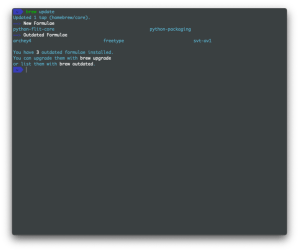 nd Mas. The former is my primary way of downloading and managing programs on my computer.
Homebrew is a simple program run in the command line which allows the user to search, install, update, and uninstall almost any application you could want on the Mac. Homebrew sorts programs into two categories: Formulae, which are text-based command line programs, and Casks, which are full app images of applications, just like the ones you would download from the web. Downloading Homebrew does take a while and the large amount of text and loading bars in the terminal can be overwhelming to someone new to non-GUI download programs.
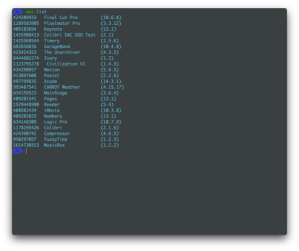
Homebrew is called in the command line with the brew command followed by one of seven sub commands: search, info, update, upgrade, uninstall, and list. Each of these are rather straightforward. The search option followed by the name of a program will return any programs in Homebrew that can be downloaded, both Formulae and Casks. Info followed by the name of a program gives details related to the program to ensure you are downloading the program you are after. Install, update, upgrade, and uninstall all do what they sound like they do, and list lists out all programs you have downloaded through Homebrew. What this means for me is that I can simply open up a terminal window, type brew update; brew upgrade and all of the apps I have downloaded will have their updates fetched, listed, and installed all without ever needing to click on a dialog box.
Mas is a very similar program which works more or less in the same way, but it only finds and updates apps from the Mac App Store. There are just some apps, such as Apple’s first party applications, that are only available there and this program allows for them to be updated in a similar way to the rest of my system.
Alfred 5
Windows users are familiar with the search bar found in the start menu. MacOS user are likely familiar with Spotlight searches (the magnifying glass in your menu bar or the thing that pops up when you press ⌘ + Space). This is a launch bar and they are very powerful tools when you spend enough time with them and figure out how to make them work for you. Alfred is an application which builds upon the idea of the Spotlight search by adding a ton of features.

The primary function Alfred provides me is application launching. When I press ⌘ + Space, Alfred comes up and I can instantly start typing the name of an app. When what I am after comes up in the menu, I simply press Return and the app launches. I don’t need to open up the launch bar, or use the dock, or go to the Applications folder in Finder. This lowers the barrier to getting work stared which means I will be more likely to complete it as well. But Alfred offers so much more that it deserves its own post (probably a lot of these apps do). But I will quickly run through just a few features.
Pressing the = sign puts Alfred into Math mode where I can punch in a simple calculation without needing to open a dedicated calculator app. Pressing Return places the answer directly into my clipboard to be pasted into the text field I am working in.
Pressing ’ or Space puts Alfred into File Search mode and with look throughout my computer for whatever file I type in. Pressing Return will open the file in the default app for that file type. Pressing the right arrow button will give me more options, such as opening the document in a different app than the default, showing its location in the Finder, copying the contents to the clipboard, and many more options.
Typing the word spell will enter a dictionary mode and suggest how to spell a word based on what I am typing or define the word typed in. Pressing Return copies the word to the clipboard to be pasted in. This is great when SpellCheck just can’t recommend the word you are after.
Alfred allows you to make sub-routine programs called Workflows. This allows you to make automations based on words you type into Alfred or keyboard shortcuts you dispatch. This can do things like start a timer, search your browser’s bookmarks, or pretty much anything you have the patience to build or download. This feature is less useful after the addition of Shortcuts to the Mac, but I still like to use them for Alfred specific workflows.
This is just the tip of the iceberg for what Alfred offers as an app. I cannot recommend it enough. However, I would only suggest it to people who have used Spotlight and are left wanting more.
Better Touch Tool
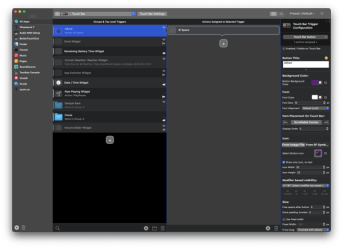
Better Touch Tool is an application I use almost constantly. It does two big things: create custom automation hot-keys and macros and allows for full customization on my MacBook’s touchbar. The latter is my primary use for it and if you have a Mac which still has a touchbar, this a must have app. Apple did very little to push for developers to add touchbar integration into their programs. As a result, it feels rather useful if not in the way. However, BTT allows for the user to customize the touchbar on a per-app basis and add shortcuts for common workflows and automations. For instance, in my graphical publishing software Affinity Publisher (more on this later), I have a button for exporting to .pdf or .png files. Or in my web browser I have buttons for my bookmarks, browser history, and downloads. Additionally I have buttons which allow me to see the battery level, the current song playing, and the Focus Mode I am in.
But this is just a fraction of Better Touch Tool’s functionality. For instance, it allows you to move windows around the screen in a pseudo-tiling window manager way with keyboard shortcuts. I am able to attach a MIDI keyboard and add extra keys to run other workflows all from this one application. Its a very powerful piece of software that makes using the Mac easier and more powerful.
Spark +AI

I like to have independent applications for each aspect of my workflow. While I could get away with a web based mail application or even a first party mail client, I found myself, as with most of the spaces the apps I use take up, wanting something more. Enter email and my client of choice: Spark. I started using Spark in graduate school as a way to manage multiple email accounts in an efficient way. Firstly, it is an aesthetically pleasing application. While this may be superficial, I spend enough time in email for me to want to have a better screen to look at. Its layout makes for a clean experience with minimal chrome and crap in front of me. When enabled, Spark sorts your inbox into three sections, your main “People” feed which are my regular correspondences with real life humans that I am talking to, “Notifications” for things like password codes, alerts from a web service, or bills, and “Newsletters” which are great for publications which are sent to my inbox or for special offers from online stores. Additionally, spark’s form of flagging emails is referred to as “Pinning” which paints and better picture in my head than the idea of “flagging” which I associate with land-mines and “staring” which I associate with purely good things, not emails I need to tend to later. This alone was enough of a reason to have me make the switch.
In the last few months, the developers added a number of extra features. This includes the ability to block contacts before even seeing their messages. If the spam filter missed something, don’t worry, you can send that random junk mail into the void. If you are not sure if a message is from a legitimate source or not, you can always receive it and block the sender later too. Spark changed the concept of “Archive,” a feature I never used, to “Done.” This is fundamentally the same function, but this simple verbiage change made a big difference for me. Now, when I am finished with an email thread, I treat it like a task on a checklist and mark it off. That email is done and out of my line of attention. Lastly, following the craze of chat based machine learning algorithms, Spark recently added the ability to use prompt based transform models (the “t” in GPT) in the creation of emails and in the processing of emails sent to you. I have a very specific way of writing. For this reason alone, this composition feature is not useful for me. Using it makes me literally sound like a lifeless robot. There are no Spencer quirks or niceties in its generated prose. However, the machine learning generated summaries can be really nice for very long emails that I am carbon copied on. It can even break a message into different levels of detail or present the chain as a list of bullets. There are ways in which the machine learning revolution will help us and I think Spark is on to something with this.
Vivaldi
I love Vivaldi. Most people that use Vivaldi, love Vivaldi. It is a nerdy app that provides customization and functionality that other web browsers wish they could offer. Vivaldi deserves its own future blog post. If there is any app I wish more people tried, it would be Vivaldi.
Vivaldi is a fork (an program based on the code of another program and changed in any number of ways) of Chromium, the open source program which Google Chrome is also a fork of. It is made by a small Swedish team of developers that care about making the best possible internet browser experience. As someone who likes to stay as far away from Google products (with YouTube being the biggest exception) as possible, Vivaldi is an amazing tool that neatly helps me achieve this goal.
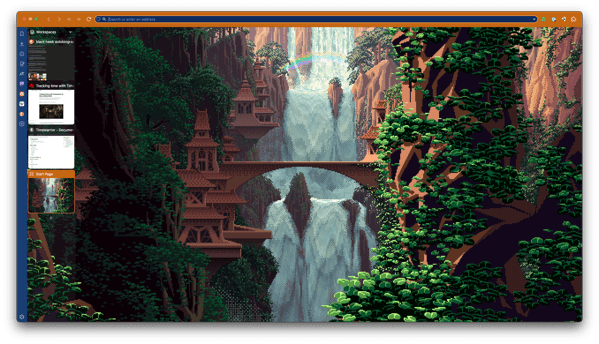
Vivaldi does everything Chrome does. It uses the same web extensions as Chrome. It keeps up with all the features added in the upstream development of Chrome. It can, in theory, emulate the same Google Chrome experience you may already be used to, just without the prying eyes of Google with literally every telemetry component they place in their browser.
What Vivaldi offers you, should you choose to accept it, is accessible yet robust customization options, effective tracker blockers, and new ways to use the web. Vivaldi allows you to, out of the box, customize any element you wish in the application. Many are available in their “theme editor” section of their extensive settings panel. This will allow you to download one of many community made application themes which changes colors, icons, and images of the interface. If you are willing to get your hands a little dirty you can customize all of this yourself. If you really want to nerd out, you can even customize the .css of the application and fine tune everything the way you want. Vivaldi allows you to use whatever search engine you wish for browsing, with DuckDuckGo as its default option. Tabs can be placed on the left or right side of the window to give you a live preview of that tab’s contents. “Web panels” allow you to save a specific web page that can be accessed quickly alongside your main browsing session. “Workspaces” create ways to reorganize your tabs to keep you on task and prevent you from losing important cites.
Vivaldi is such a powerful and easy to use web browser that I cannot recommend another browser more, unless you are perfectly happy with whatever you are currently using. But even then, I would suggest giving it a look just to know that there is a whole world outside of Google Chrome, Safari, or Firefox.
PDF Expert
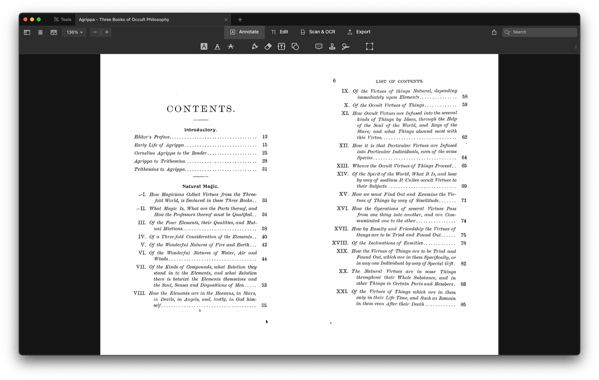
PDF Expert was an application I started using in grad school to mark up articles on an iPad. It does what most any PDF editing application can do, but in a design language which fits on the Mac, which is a commonality I can say many of the programs on this list share. PDF Expert is actually made by the same team behind Spark and this makes working between the two really easy. This app lets you annotate, sign, date, edit text, add pages, and much more. It’s easy to use. I am anxious to see what Apple’s Notes new PDF features coming in iOS 17 this fall will be like, as I wouldn’t mind saving money on annotation software if it offers similar enough features for me as this app. It is by no mean a bad app, I just don’t live in it like most of the other applications on this list.
1Password

Everyone should have a password manager. 1Password is in my opinion the best GUI cross-platform option. It makes creating logins, credit card info, addresses, WiFi passwords, and even private notes a breeze to store safely. I do not know the passwords to over 90% of the accounts I have because 1Password made them long and complicated and therefore more secure. 1Password, or any password manager, does not guarantee your accounts from being compromised, but 1Password even makes you aware of when that account may be in trouble and makes it easy for you to quickly change your password and limit any damage. 1Password is on MacOS, Windows, iOS, and in the web browser. In a recent update, pressing command + shift + Space opens up a launch bar like utility, like Alfred, that allows you to search your “vault” for whatever password you are after and copy and paste into whatever field you have focus on. It is one of the first apps I install on any new system I am going to use for any more than a single day.
But really, please do yourself a favor and use a password manager that isn’t just saving in your web browser. And then make sure all of your loved ones are in the same boat. It makes our digital lives more secure and easier.
Affinity Creative Suite
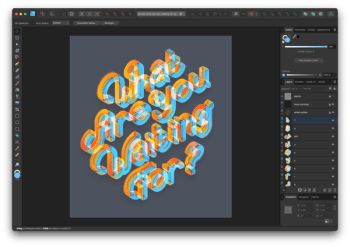
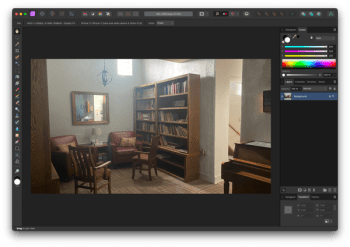
Do you hate the choke-hold Adobe has on the digital creative world charging a ton of money per month to use their cloud based services? Do you miss the old days when you could buy a single license and not have to worry about stability and security fixed? Me too. That why for vector, raster, photo, and publishing design I use Affinity applications (Designer, Photo, and Publisher). These applications look and feel very similar to their Adobe counterparts. The three integrate seamlessly with one-another in what are called “modes.” This allows the user to take a photo in one app and clean it up before switching to a vector editor to add graphics or make other alterations and then shift to the page of a poster or brochure to be print ready. You do not need to get all three to get value out of any one of them, they stand on their own just fine. But The power offered by this combination with the addition of good iPad apps that share files over iCloud makes the process from capture to final product quicker and easier.
One more note is that I use Affinity Publisher in an unorthodox way by making it my primary slide show maker. I have templates set up for the dimensions of normal slide and will use the many tools available to me in this robust program to produce striking slides that capture my ideas and help keep the audience engaged in ways that, for me, take a lot more work to achieve in PowerPoint or Keynote. Although, I just want to make a plug for Keynote quickly as I can say without flinching that it is a superior presentation making program over PowerPoint and anyone with a Mac should really give it a try the next time you need to make some slide.

Carrot Weather
This will actually be a short one, but this is a fun, pretty, and informative weather app. It allows for a lot of customization, including weather station source data, the design of various icons, the order in which information is shown to you, and gives updates on things like precipitation and lightning strikes. It also lets me see the temperature in Kelvin.

iTerm 2
It’s kinda funny how much time I have spent talking about these GUI applications when so much of my time at the computer is actually within a terminal emulator. I am a keyboard first desktop user and nothing is more keyboard first than the command line. Using macOS means that I have the advantage of a Unix-like environment in the terminal which is a far more robust place than for Windows, though this too has come a long way in recent time.
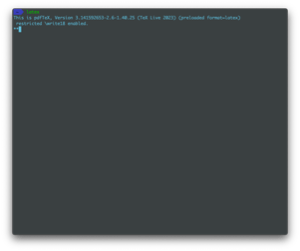
The stock terminal emulator on macOS, Terminal, is actually quite good and for anyone curious about using text-based workflows it is a great place to start. This experience is made even better by Apple’s choice a few years ago to switch the default shell, the prompt and set of scripting language used in the terminal, from the Bourne Again Shell, bash, to the Z Shell, zsh. The latter offers some quality of life features out of the box, such as auto-completion and case-insensitivity. But, as has been the trend with this list, I wanted to find a terminal emulator which gave me more features than the standard. In my case, and many other Mac users, this came in the form of iTerm.
Based on my conversations with and observations of Mac users who live in the command line, iTerm is far and away the app of choice. It is built for macOS in look and feel. It integrates with tmux, a shell program for managing multiple terminal windows in one main window. It allows for fine detail customization, such as with text and background color, window behavior, transparency, and much more. One of my favorite features is the “hotkey window” which is simply a terminal window that pops up when after dispatching a key combination (in my case, command + period).
One way to think about iTerm is like it is my web browser. I write all my papers in it, take notes in it, read in it, manage files, change system behaviors, and learn in it. So, as quickly as quick can be for me, I want to mention some of the programs essential to my workflows which I use inside of iTerm (other than Homebrew and Mas, the first two applications listed).
Vim

Vim is a modal text editor. The latter means it is a program which allows you to alter and save files which are text based. The former refers to how it works: in modes. When starting vim with a file, you are greeted with the text of your file and a section in the lower right corner which says “NORMAL.” This is normal, or command, mode. In this mode, you cannot type text directly. Instead, you are able to move around the file with the h,j,k, and l keys for left, down, up, and right respectively. Typing a number before one of these letter repeats the command that number of times ( 10 j will have you go down 10 lines, for example). You can also jump from one word to the next with “w” (forward one word) or “b” (back one word). From this mode, you can enter the “insert” mode, which allows you to actually type. The standard way to do this is to press “i”, which allows you to insert text at the point your cursor is on. You can also use “a” to insert one space after the cursor, “I” to insert at the begging of the line, or “A” to insert at the end of the line. You can edit a whole word with “c a w” (for change all word). And once you are done adding or changing words, you simply press the escape key to take you back to normal mode. Lastly, pressing “v” enters visual mode, where text is highlighted and can be manipulated with commands such as “y” to yank text and “p” to paste it. Who sentences, paragraphs, or blocks of text can easily be moved around with this mode. Once you are done, don’t forget to hit escape to go back to normal mode and then press :w to “write” to the file and save your progress. This blog was written in Vim. My research papers were written in vim. My notes are written in vim. I write programming code in vim. If you have a Mac, you already have it installed. Just go to your terminal and type “vim” and press enter. Just don’t forget to press :w to save and :q to quit.
LaTeX
On the subject of writing, what if instead of writing in Word or Google Docs, you wrote in a programming language designed for typesetting? Does it sound like overkill? Probably. Dose that phase me? Not even a little. LaTeX (pronounced like “La Tech”) is a software package trusted by academic scientist, publishers, and nerds alike. A document is written in a .tex file. It has a preamble where the user specifies various attributes of the document, such as margin size, double spacing, and the name of the author. This is also where packages are imported, or other sets of code which LaTeX uses to change the look of the document, such as adding color, special characters, or citation standards. For instance, I have a package for history research papers that loads a set of commands on how to make citations in the document follow Turabian style with footnotes and a bibliography. This makes things look consistent every time I compile a document. The second section of the file is the actual body of the text. Then you can begin by simply typing text like in an writing program. Paragraphs are generated with the command \par or with a blank line between two sets of text. Text formatting, such as bold-facing or italics, are called with \textbf{word} or \textit{word} respectively. After the document is done, or if you just want to check your progress, in the command line you simply run pdflatex file.tex and your document will be compiled. Assuming there are no errors, you can open your new .pdf in your viewer of choice and congratulations, you just created a .pdf without ever using a mouse. As someone who works in the command line as much as I can, learning LaTeX was bound to happen. And my papers have never looked better.
SC-IM
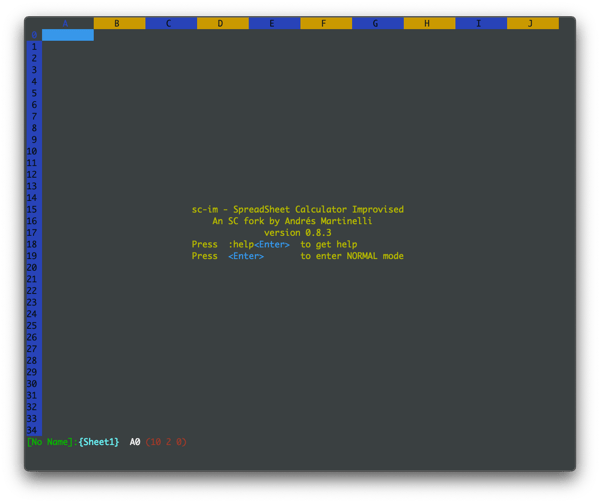
If LaTeX and Vim are my Word replacement, then SC-IM is my Excel replacement. It is a very basic spreadsheet application right in the command line. It allows for editing of .csv, .tsv, and .xlsx file formats. It uses a similar set of keyboard commands as used in Vim, with h,j,k,l used for directions, p for pasting, and d for deleting. SC-IM treats integers and strings differently by requiring the user to define what kind of information is going into a cell with the “=” used for numbers and <, >, or used for text. Equations are written by calling a function with the @ symbol and then an operation, such as SUM or SQRT. When I need to quickly and easily tack data, start a new database, or enter financial records, SC-IM is my go to tool.
mySQL
Just as I alluded to in the previous sections, mySQL also replaces GUI software, this case database management. I have only been using mySQL for a little over a year and a half, but it is a very powerful tool. It uses the industry standard of making relationally based tables within a data structure to allow for the same information to be shared across multiple data look-ups and allow for the end user to query any entry based on very specific criteria. mySQL is, like with my other command line programs, a cross-platform standard and can therefore easily enough be transferred from one machine to another with the need to make any adaptations. I have not played around with front ends for mySQL and mostly prefer to just do everything directly in the terminal. Worthy of note is that Facebook, Twitter, and YouTube all use versions of mySQL to run their services and make connections between queries and content.
R

The last command line program I want to talk about is actually a whole other language and compiler: R. R is a data science programming language. It is rather new in the world of programming languages, but it has really gained a lot of traction in the last several years as a great tool for organizing and presenting large sets of data. I use it for two things: a scientific calculator and a graphing program. When I am in the command line, I want to do as little outside of it, so running a quadratic formula in R is a quick an easy solution for this arbitrary desire. Additionally, if I compile a bunch of data in say, SC-IM, I can simply import that .csv file and run any number of functions on the set to find things like averages, medians, create graphs, and even run linear regressions with R. I am still very much a novice with this language, but it is among the three that I am spending a considerable amount of time on as I only see my life getting easier with it in my tool belt.
 Spencer A. Barton
Leave a comment